Sync Draft Orders Between Nue and Salesforce
Overview
The Sync Draft Orders feature enables seamless, bidirectional synchronization of draft (unactivated) orders—including all line items, discounts, and billing settings—between Nue and Salesforce. Draft orders can be initiated from either direct sales (Salesforce) or self-service (Nue).
This feature supports critical use cases such as:
- Tracking self-service cart abandonments for sales follow-up
- Pushing direct sales draft orders to the billing portal for customer self-checkout
- Ensuring that any changes made to draft orders propagate accurately before activation
Why It Matters
- Increases revenue capture by enabling reps to monitor and follow up on abandoned self-service carts, reducing missed opportunities
- Streamlines deal closure by allowing reps to initiate draft orders in Salesforce and push them to the billing portal for customer self-checkout, reducing sales cycle friction
- Ensures billing accuracy by propagating all relevant fields (billing, discounts, custom fields) and preventing duplicate or out-of-sync orders across systems
Setup & Configuration
Enable Draft Order Sync in Nue
To enable draft order synchronization, administrators need to configure the sync settings in the Nue platform.
- Navigate to Settings in your Nue admin panel
- Locate the Salesforce Integration section
- Enable the Sync Draft Orders setting
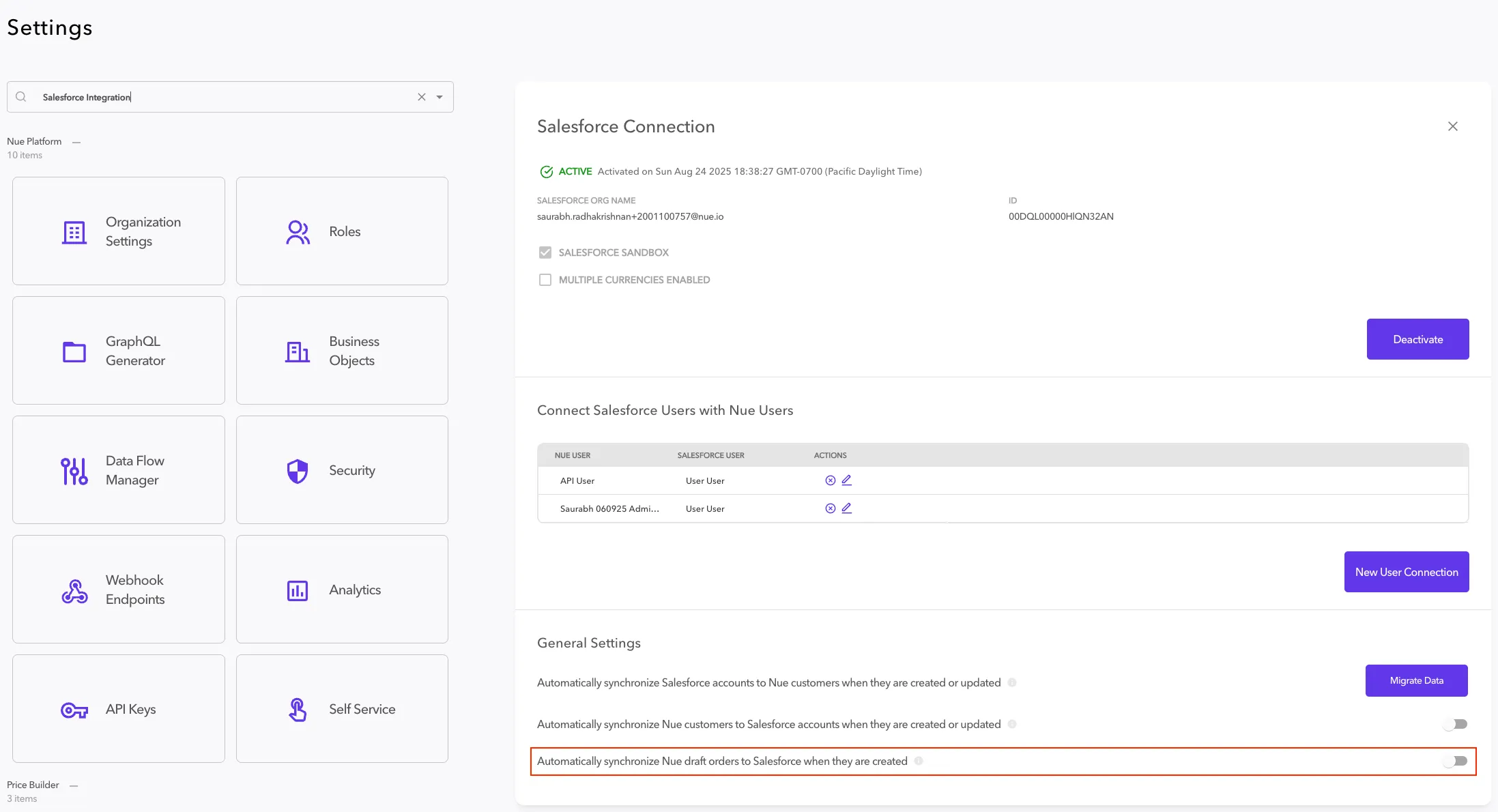
Once enabled, the system will:
- Automatically sync draft orders created in Nue to Salesforce (if auto-sync is enabled)
- Listen for webhooks to process draft order events
Salesforce Configuration
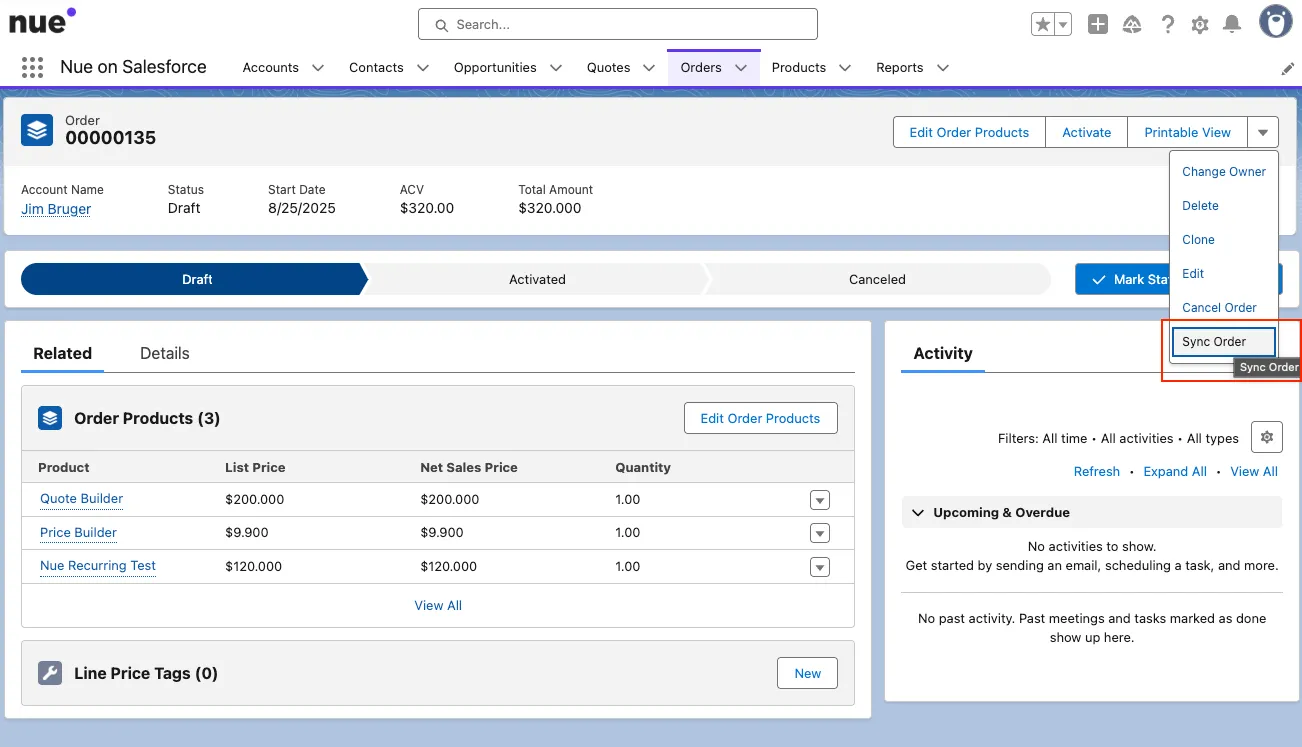
In Salesforce, users will see a Sync Order button on draft order records that allows manual synchronization to Nue.
Sync Workflows
Nue → Salesforce (Automatic)
When a draft order is created in Nue through the self-service portal:
- The order is created with status DRAFT in Nue
- If auto-sync is enabled, a webhook event (order.created) is triggered
- The system checks if the sync-draft-orders setting is enabled
- The order, along with customers, order products, line items, and pricing dimensions, is synced to Salesforce
- External IDs are mapped bidirectionally to maintain referential integrity
Salesforce → Nue (Manual)
Sales representatives can push draft orders from Salesforce to Nue:
- Rep creates or modifies a draft order in Salesforce
- Rep clicks the Sync Order button
- Nue creates or updates the draft order with all associated data
- The customer can then complete self-checkout in the billing portal
Use Cases & Examples
Use Case 1: Cart Abandonment Recovery
A SaaS customer's end-user begins a self-service checkout in the billing portal but abandons the cart before completing payment.
- Draft order automatically syncs to Salesforce
- Sales rep receives notification of abandonment
- Rep reviews the customer's cart details
- Rep initiates a follow-up call
- Rep can complete the order directly from Salesforce or guide the customer to complete self-checkout
Use Case 2: Sales-Assisted Checkout
A sales rep working on a complex enterprise deal:
- Rep prepares a quote and draft order in Salesforce
- Rep finalizes it into a draft order
- Using the Sync Order button, rep pushes to Nue
- Customer receives a link to the billing portal
- Customer completes self-checkout and payment
- System updates status in both Salesforce and Nue
Technical Implementation
Webhook Events
The system uses webhooks for real-time synchronization:
- order.created - Triggered when a draft order is created
Source of Truth Rules
To maintain data integrity:
- Activation Respects Origin: Orders can be activated from either system, but the activation always respects the system of origin
- If a Nue-origin order is activated in Salesforce, it triggers activation in Nue and syncs back to Salesforce
- If a Salesforce-origin order is activated in Nue (customer self-checkout), it triggers activation in Salesforce and syncs back to Nue
- This ensures the originating system's data and business rules are always respected
- Field Precedence: During sync, the sending system's data takes precedence
Limitations & Considerations
Current Limitations
No Deletion Sync: Order deletion is not synchronized between systems. Orders must be manually deleted in each system if needed.
Best Practices
- Always verify critical order details after sync
- Use the sync feature before order activation to ensure data consistency
- Monitor webhook logs for any failed sync attempts
- Ensure customer and contact records exist in both systems before syncing orders